OpenClaw Overview
OpenClaw (formerly Clawdbot, Moltbot) is a viral open-source AI assistant project built around the idea of “not just chatting, but actually executing and delivering tasks you assign.” It can turn commands you send in WhatsApp, Telegram, Discord, Slack, and other chat apps into executable workflows: clearing your inbox, managing your calendar, and even running automation pipelines. It’s arguably one of the most “real-life ready” AI personal assistants available today.
Bottlenecks for OpenClaw Users
Cloud Model Bills Spiking
When you move from chatting to having an “agent” do work, the context is no longer just a few lines of conversation.
A typical context includes:
- Your long conversation history with the assistant (preferences, rules, instructions)
- Task plans and intermediate state after decomposition
- Tool call outputs (email summaries, web content, document excerpts)
- Error retries, logs, and trace messages (to keep it from getting lost)
All of these inflate LLM token usage—becoming the main cost driver for users.
Local Deployment of Models Is Hard
If you connect OpenClaw to locally deployed open-source models, you may be able to reduce costs.
But you’ll quickly run into a series of real-world deployment challenges:
- How do you estimate the budget for a machine capable of running models locally?
- How do you deploy inference services smoothly, then monitor and maintain them?
- Model selection and version upgrades (quality/speed/VRAM/quantization trade-offs)
- Long context and throughput: longer contexts require more VRAM and better inference configuration
In the end, you may save on token costs, but start paying in “time, maintenance, and risk.”
The Solution: Use the UnieAI API
The most practical approach is:
- OpenClaw handles: channels, tools, workflows (the agent capabilities you want)
- UnieAI Model API handles: model inference, performance, flexibility, security, and cost control
You avoid the “self-hosted inference deployment hell,” while also preventing top-tier cloud model costs from spiraling out of control. Key advantages include:
- Multiple open-source models available—swap and experiment anytime
- All models are self-hosted and paired with UnieAI’s in-house inference engine, UnieInfra, for stable performance
- A Token Usage Dashboard to track usage, with predictable budgeting and quota controls
- API key management and model access logs for governance and monitoring of outputs
UnieAI Studio Guide
Get Your First API Key
Note: API keys are confidential. Do not share them with any third-party organizations or individuals to avoid accidental losses caused by key leakage.
Step 1: Sign Up for UnieAI Studio
You can register/log in to UnieAI Studio using any OAuth provider supported by UnieAI. The login page looks like the screenshot below.
The one and only UnieAI Studio URL is: https://studio.unieai.com
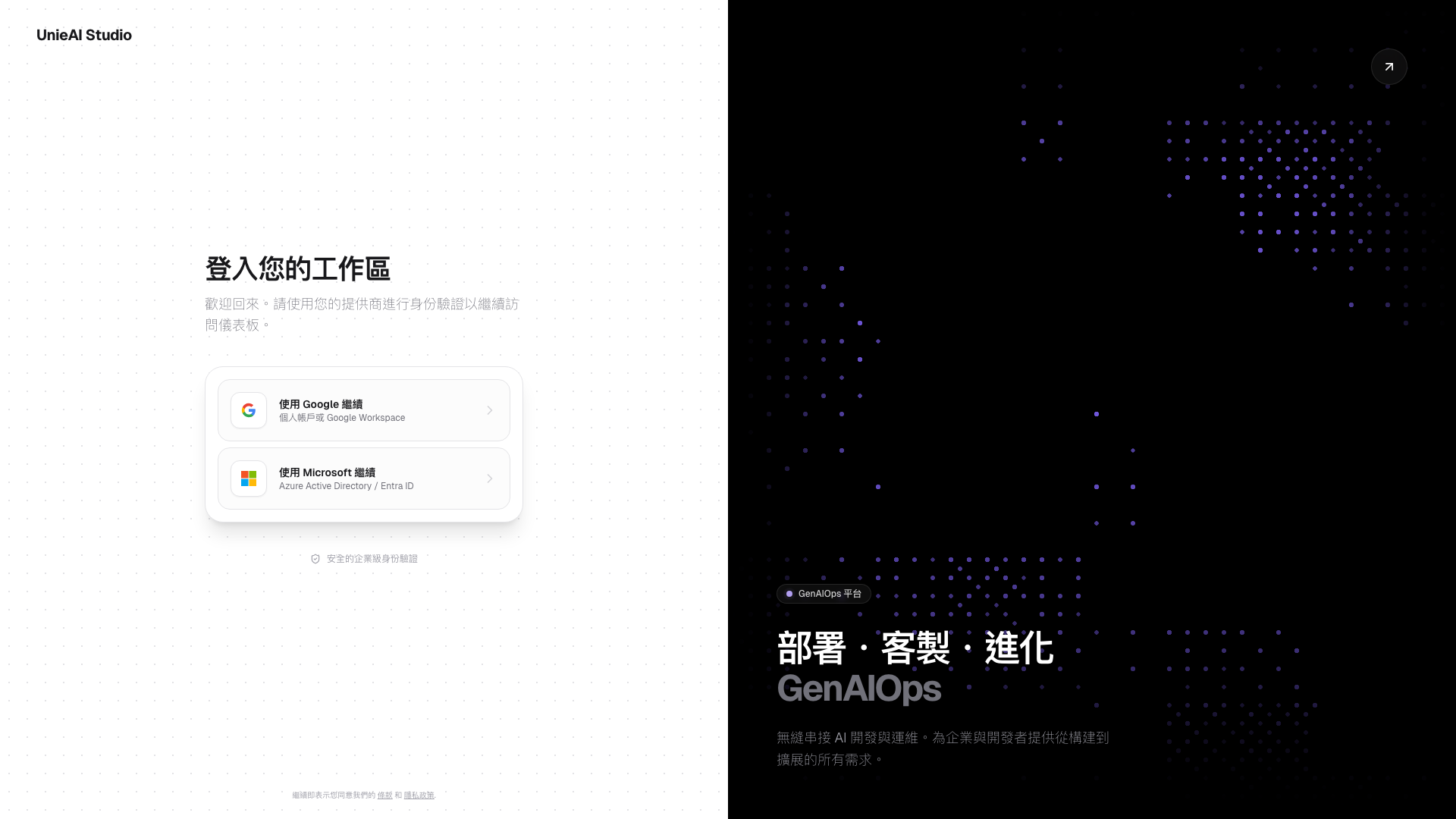
UnieAI Studio Login UI https://studio.unieai.com
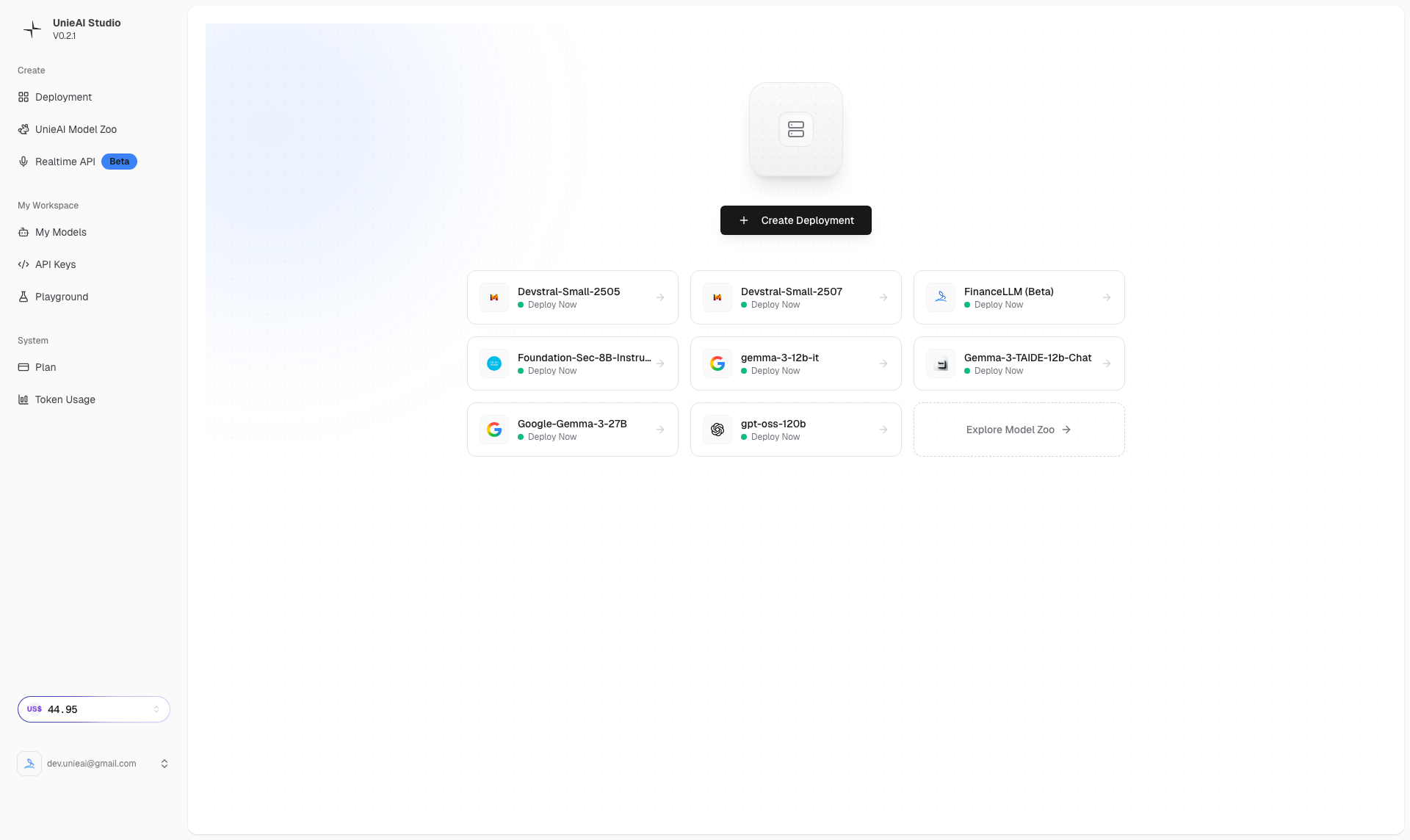
Step 2: Studio Dashboard
Click Create Deployment to create the model you want to use.
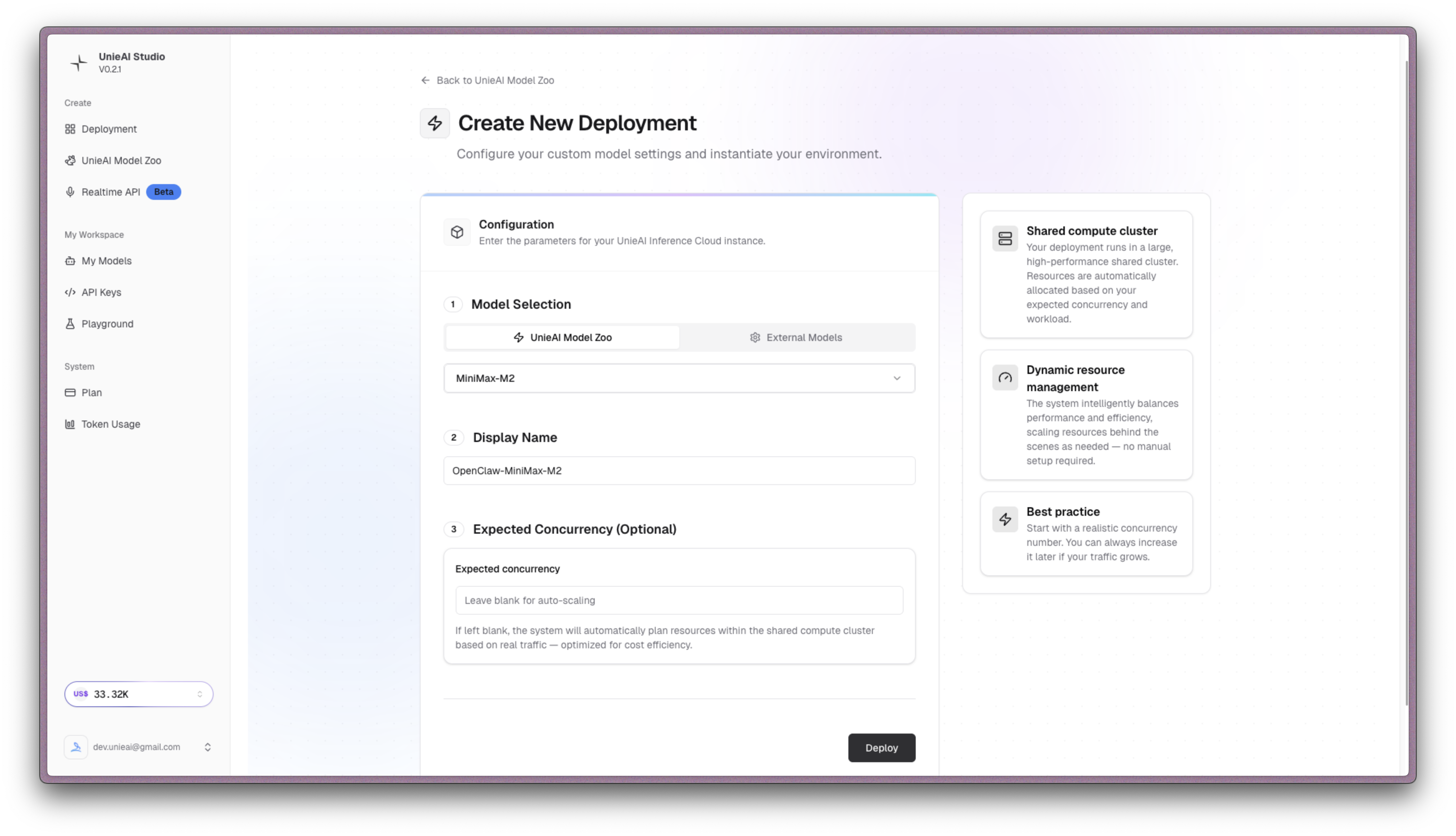
Step 3: Choose the Model You Want
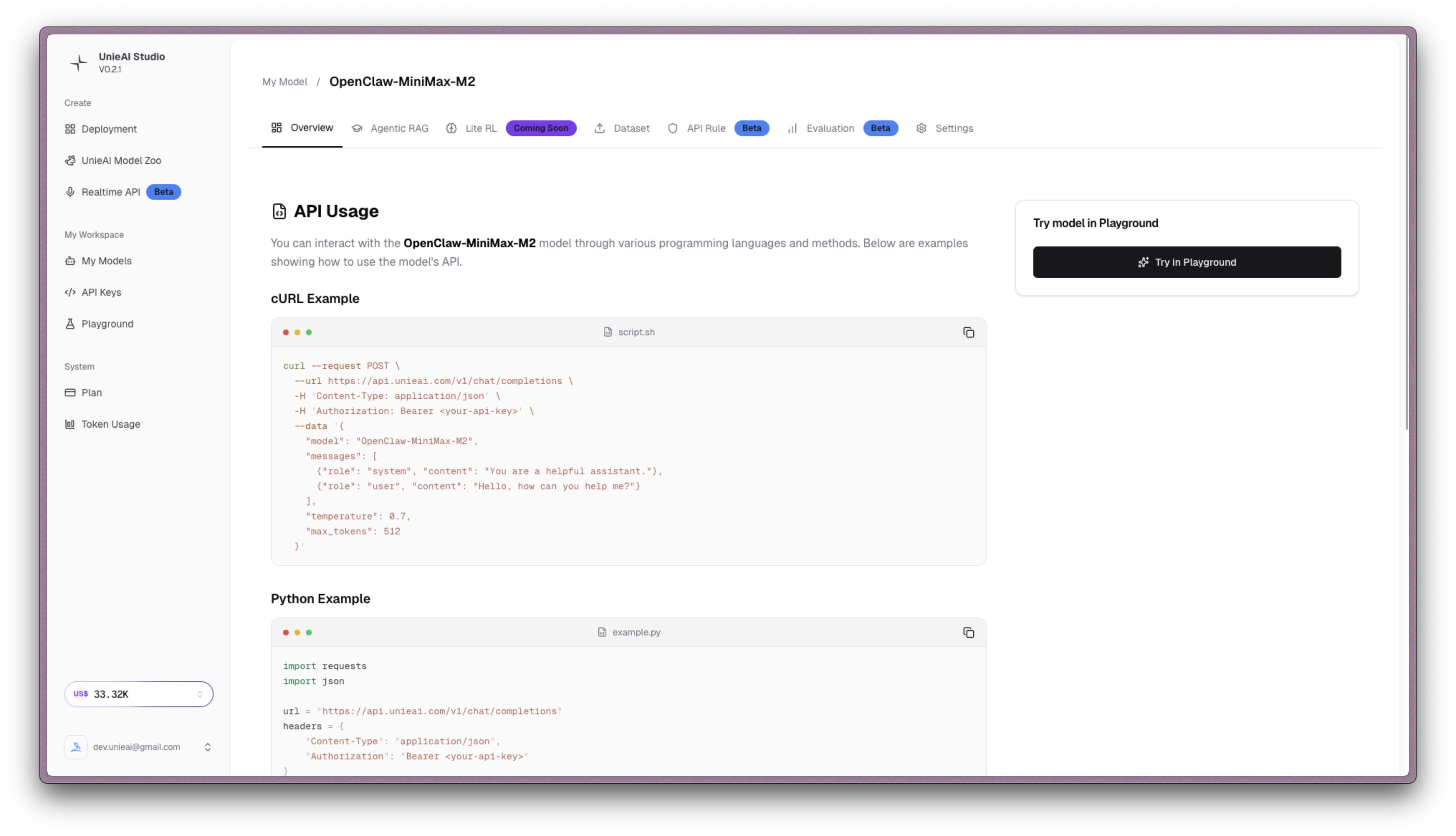
Step 3.1: Test the API
You can use the following commands or code to test whether your API is working properly. After that, you can register OpenClaw using the same API Key.
Setup Steps (Using MiniMax-M2 as an Example)
1. Edit the Configuration File
Edit the ~/.openclaw/openclaw.json file and add the following under models.providers:
{
  "models": {
    "mode": "merge",
    "providers": {
      "unieai": {
        "baseUrl": "<https://api.unieai.com/v1>",
        "apiKey": "YOUR_UNIEAI_API_KEY",
        "api": "openai-completions",
        "models": [
          {
            "id": "MiniMax-M2",
            "name": "MiniMax M2",
            "reasoning": false,
            "input": ["text"],
            "cost": { "input": 0, "output": 0, "cacheRead": 0, "cacheWrite": 0 },
            "contextWindow": 200000,
            "maxTokens": 8192
          }
        ]
      }
    }
  },
  "agents": {
    "defaults": {
      "model": {
        "primary": "unieai/MiniMax-M2"
      }
    }
  }
}
2. Verify the Model Is Configured Correctly
openclaw models listYou should see:
Model                             Input      Ctx      Local      Auth     Tags
unieai/OpenClaw-MiniMax-M2        text       195k     no         yes      default
3. Set the Primary Model (Optional)
If it wasn’t set automatically in the previous step, you can run:
openclaw models set unieai/OpenClaw-MiniMax-M2Common Commands
| Command | Description |
|---|---|
openclaw models list | Check available models |
openclaw models set unieai/OpenClaw-MiniMax-M2 | Set the primary model |
openclaw doctor | Check system status |
openclaw config validate | Validate the configuration file |
Troubleshooting
Issue: Configuration File Syntax Error
Solution: Check your JSON syntax and make sure all braces and commas are correct.
Issue: The Model Doesn’t Appear in the List
Solution:
- Confirm the API key is correct
- Run
openclaw doctorto diagnose - Restart OpenClaw
Issue: Connection Failed
Solution:
- Check your network connection
- Confirm the UnieAI service is up
- Verify the API key is valid
Once configured, your OpenClaw agent will automatically use UnieAI’s MiniMax-M2 model!
Quick Checklist:
- UnieAI configuration added to the config file
- API key set correctly
-
openclaw models listshowsunieai/OpenClaw-MiniMax-M2 - You can successfully send a test message